Overview
PyCOMPSs
Installation on HPC
Info
The Clusters page documents PyCOMPSs installation/configuration for various clusters. It might be interesting to check out if you need to setup on these machines.
This documentation guides the user on installing COMPSs, and its Python bindings PyCOMPSs. The COMPSs documentation provides already a good overview of the process and the user is advised to read it beforehand to understand what is installed.
PyCOMPSs documentation links
[Recommended] Manual installation: example
This installation follows the official one. It shows the main passages as done in the CINECA's cluster Leonardo.
Warning
Please, refer to COMPSs documentation for more info and guidance on your cluster.
We assume that the user is connected to the cluster.
1: Load dependencies
Load the required dependencies. In Leonardo, using modules:
-
Java:
-
Boost:
-
Python:
In Leonardo, you need to install
pipand other required building tools for the user. For example: -
Autotools: usually already available. Testable with
autoconf --version. -
gcc:
For more info on gcc compilation, see the Troubleshoot section.
2: Setup environment variables
Make sure the following environment variables are set:
-
JAVA_HOME: should be set by theopenjdkmodule. Check withecho $JAVA_HOME. -
BOOST_CPPFLAGS: check the one used for theboostlibrary compilation. On Leonardo, inspect$BOOST_HOME/.spack/spack-build-out.txt:These are the default flags of the B2 building system for that version.
3: Download and install COMPSs
From the download page select the COMPSs version:
wget https://compss.bsc.es/repo/sc/stable/COMPSs_<version>.tar.gz
tar -xvzf COMPSs_<version>.tar.gz
cd COMPSs
./install -T <targetDir> [<supercomputer.cfg>]
Note that supercomputer.cfg refers to the config file used for that HPC and Scheduler (more info on the Configuration section, example files can be found in COMPSs/Runtime/scripts/queues/supercomputers). <targetDir> is where to install COMPSs, be aware that the content of that directory will be erased. -T excludes the tracing system, however it can be included if the supercomputer supports extrae (for more info see the official documentation). More info on the available flags with ./install --help.
A correct installation prints the successful installation of COMPSs and all its bindings to stdout.
4: Create a (tcl) module
To make binaries available and set the right environment variables in the shell, create a tcl module:
A minimal example:
#%Module

set COMPSS_HOME "<targetDir>"
prepend-path PATH "${COMPSS_HOME}/Runtime/scripts/user:${COMPSS_HOME}/Runtime/scripts/utils"
prepend-path CLASSPATH "${COMPSS_HOME}/Runtime/compss-engine.jar"
prepend-path PATH "${COMPSS_HOME}/Bindings/c/bin"
prepend-path PYTHONPATH "${COMPSS_HOME}/Bindings/python/
export R_LIBS_USER=${COMPSS_HOME}/Bindings/RCOMPSs/user_libs/:$R_LIBS_USER

setenv COMPSS_HOME $COMPSS_HOME

prereq python/3.11.7
prereq openjdk/11.0.20.1_1
R_LIBS_USER is used in case of R bindings installation.
Save it in <path/to/modules>/compss/[version] and load it using:
module use --append <path/to/modules> # that can be added in ~/.bashrc or before a workflow run
module load compss/[version]
To test out the installation, after loading the module, run:
[Experimental] Installation using Spack
Warning
This installation is experimental and not directly supported by the COMPSs' Team. If issues arises, please refer to the officially supported manual installation
Spack references
- Add a package to Spack
- Advance packaging tutorial
- Reference files in directory spack
Info
This repository contains two package.py depending on the Spack version. 0_22/compss/package.py has been tested with Spack <= 0.22.x. 1_00/compss/package.py has been tested with Spack 1.0 > <= 1.2.
If you encounter any issues in the process, read the troubleshooting section before open an issue.
These steps assume that Spack is available in your shell. It might be loaded in your HPC environment, for example using module load spack.
If you already have a Spack custom repo (in this example, the namespace is called <repo name>), skip to step 2, otherwise start from 1 creating a custom repo. Custom repos are required because most probably you won't have the permission to add software to the main repo of your cluster.
1. Create a personal repo
This will create a new repository, and a namespace, where to add recipes for softwares called <repo name>.
2. Add COMPSs to the repo
Then you will be prompted with the default editor to update the package.py of COMPSs that you can close. Overwrite the content of spack edit compss with the package.py from this repo:
cp <this repo>/docs/spack/<spack_version>/compss/package.py path/to/root/repos/<repo name>/packages/compss/
3. Install COMPSs
Concretize the spec and install COMPSs, specifying the cfg through the environment variable COMPSS_SUPERCOMPUTER_CFG (only the filename):
4. Generate the Tcl module
Load environment variables and add binaries to PATH:
Now, load COMPSs in the current shell:
The full name will look something like compss/3.3.3--gcc--12.2.0. Alternatively:
To test the installation just type enqueue_compss --version.
Troubleshoot
The user cannot create a personal repo in the cluster
If this operation results in permission errors in your cluster, probably the user is not allowed to have a personal repo.yaml file.
In this case, contact your system administrator. A possible solution could be re-enable the user to perform such operation specifying unset SPACK_DISABLE_LOCAL_CONFIG
COMPSs cannot be found when creating the Spack spec
In a cluster, is customary to have a system Spack repository called builtin. This can be checked using:
builtin is higher than you personal <repo name>, as in the above output, Spack might not find compss because it searches for it in builtins. To solve this, you can specify the namespace from which the package should be installed:
and similarly when installing it.
Errors while compiling COMPSs with gcc 13 or later
There are two possibilities. You can unsure that the C compilation is compliant with the COMPSs code by specifying the environmental variable export CFLAGS="-std=gnu17" before installing COMPSs. This is an easy fix with recent gcc versions. You might need to modify the spack recipe in case the variable is not correctly used.
On the other side, one can use gcc 12 by specifying to spack to use it. To ensure this you can specify a compilation preference (for transitive dependencies, because COMPSs does not depend on gcc directly). On Spack 1.0 or later, find Spack's package.yaml with:
Cannot install PyCOMPSs because no pip available
In this case, you need to install pip within the Python interpreter that you use to install PyCOMPSs and run workflows. Follow the official documentation for this.
Be aware that if you install pip and PyCOMPSs within a venv, PyCOMPSs will be installed only on that virtual environment. Therefore, you will need to always source it to run a workflow. We discourage the latter approach.
No module compss when using module load
If you cannot find the compss module, you need to issue first (or append to your shell config file, e.g. ~/.bashrc, to make it permanent) module use --append $SPACK_HOME/modules/ or the location where Spack creates modules.
enqueue_compss runs but it cannot find other binaries
If binaries like enqueue_compss or related are in the PATH variable, but do not work when invoked, inspect the module file generated with ml show compss. A common problem is an incorrect COMPSS_HOME environmental variable.
To fix this, you need to modify accordingly to the error the package.py file in the env.set("COMPSS_HOME", compss_home) line.
Post-installation configuration
COMPSs uses configuration files to adapt to different clusters. The general structure is the following:
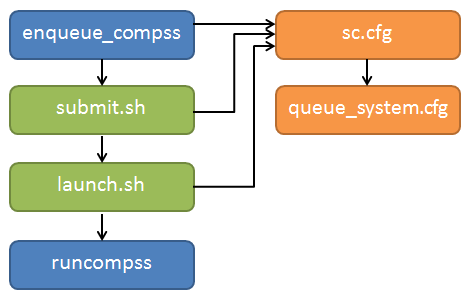
where sc.cfg is the supercomputer config file and queue_system.cfg is the confif file for the job scheduler.
Supercomputer
This file is selected during installation when calling ./install or with the env var COMPSS_SUPERCOMPUTER_CFG. Afterward, it is renamed as default.cfg in the COMPSs installation directory (<targetDir>Runtime/scripts/queues/supercomputers/default.cfg or $COMPSS_HOME/Runtime/scripts/queues/supercomputers/default.cfg), where config files for other clusters are.
Supercomputers cfg files contains a set of variables to indicate the queue system used by a supercomputer, paths where the shared disk is mounted, etc.
These files are provided with the COMPSs installation, already tuned for different supercomputers by the BSC team.
We suggest taking a look at them to have an idea of the default parameters. If not specified in the enqueue_compss flags, the default.cfg one is picked.
For reproducibility, in this repo the cfg files stored in supercomputer_configs are tested to work with the implementation of the md workflow.
Queue system (scheduler)
The cfg files contain a set of variables which are used by the other scripts. On one hand, the queue system cfgs contain variables to indicate the commands used by the system to submit and spawn processes, the commands or variables to get the allocated nodes and the directives to indicate the number of nodes, processes, etc.
These are container in $COMPSS_HOME/Runtime/scripts/queues/queue_systems/.
The user is advice to not change them.
GROMACS
Warning
We strongly suggest to follow the official documentation, the following are demostrations for specific systems that are not necessarly the best configuration for that system
Info
The Clusters page documents PyCOMPSs installation/configuration for various clusters. It might be interesting to check out if you need to setup on these machines.